Saturday, July 19, 2008
Johor police hotline (Rev: 1.2)
If you are in Johor and need police assistance, call the 24-hour hotline 07-2212999 which are manned by officers who speak English, Chinese, Malay and Tamil. The Johor police assured that they will respond to all complaints within 15 minutes. They will also inform the callers of the outcome of their investigations and follow-up actions. This was the latest efforts aimed at reducing the crime rate in Johor.
MyDistress (Only available in Selangor)
MyDistress is a service by the Royal Malaysia Police, Selangor (雪兰莪州) Contingent (分遣队) in an effort to keep Selangor safer. You should use MyDistress service to alert police in situation when you need an immediate response - if a crime/incident is happening now or if anyone/property is in imminent (逼近的) danger. If a person misuse MyDistress whereby the request for immediate response is not an action deemed emergency, Polis Di-Raja Malaysia (PDRM) reserves the right to suspend MyDistress services to the user.
MyDistress application is designed for Iphone, Android, BlackBerry or J2ME which can be downloaded from http://mydistress.net/download.html.
References:
[1] Today (19-20 July 2008, 4, News, Call this 24-hour police hotline if you need help in Johor)
[2] MyDistress

Monday, July 7, 2008
Videos (Rev: 1.7)
If you cannot see the flash video, please install Adobe Flash Player 9.0.124.0 or higher version. If you still face problem after installing the Adobe Flash Player, please refer to "No flash video displayed" error in YouTube.
Sim Lim Square 警戒(けいかい)した店(みせ): Square United.Cam (#02-72)
Beware of Sim Lim Square shop: Square United.Cam (#02-72)
Sim Lim Square Level 2 stores
http://www.simlimsquare.com.sg/store_list-l2-p4.php
Sim Lim Square is a famous Electronics and Computer Centre in Singapore. A guy who wished to buy a HD Sony video camera had ended up being convinced to pay $1760 for an inferior Sanyo video camera ($900) with accessories. When he tried to claim a refund, he was verbally abused by the salesman.
You Singaporean?
A day in the life of a typical working class Singaporean named Terry reveals to us many Singaporean characteristics that we do not pay much attention to. This film shows how little things can bring out the "Singaporean-ness" in us, and gives us a good reason to be proud of our country.
Phone Salesman Amazes Crowd - Paul Potts
Paul is a ordinary man like everyone of us. He dreams to become a singer but he lacks confident in himself. Most people tends to judge a person from their look during first impression. Paul shown us that he might not looks handsome but he got talent.
Be Inspired by Nick Vujicic (life without limbs)
Whenever you feel suffering, being treat unfairly, etc, please remember that there is always someone more suffering than you. Nick is a man borns without limbs and his story always inspires me. I hope it can inspires you too !!!!!
Tuesday, July 1, 2008
Xming (Rev: 1.2)
Unlike Starnet X-Win32 which you can evaluate it free for 30 days, Xming is a free X Window Server for Microsoft Windows (XP/2003/Vista) Operating System (OS) that enables secure graphical access to remote machines that run Linux or Unix OS. After connection to the remote machine is established, you can run the graphical applications from the remote machines in your windows pc desktop.
Assumptions:
- Windows pc where Xming is installed is Windows XP Professional SP3 OS.
- Remote host is SUN Solaris 10 or higher version OS running Java Desktop System (JDS).
- You have login to the NUS network using wired connection. If you are using wireless connection (NUS), please login to the WebVPN first before trying to connect to the remote Linux/Unix host.
Procedures:
- Please download and install Xming 6.9.0.31 or higher version, and Xming-fonts 7.3.0.18 or higher version in your Windows pc. During installation of Xming, please ensure that you have choose the default options on "Full installation" and "Associate XLaunch.exe with the .xlaunch file extension". During installation of Xming-fonts, please install Xming-fonts in the same directory as Xming and install all the fonts including 100dpi fonts, DejaVu TTFs and Cyrillic fonts. You will only need to download and install the alternative Mesa libraries, Xming-mesa (a capable software-only implementation of the OpenGL renderer) if you have an awkward X client that is failing to render.
- After installing Xming and Xming-fonts in your Windows pc, we need to use XLaunch to setup a profile for connecting to the remote host: assume a SUN Fire V480 server running JDS. Please click Start -> All Programs -> Xming -> XLaunch and set the profile settings as shown below:
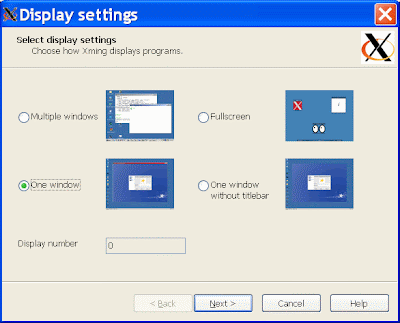
Please click "One window" option and click "Next >".
Please click "Start a program" and click "Next >".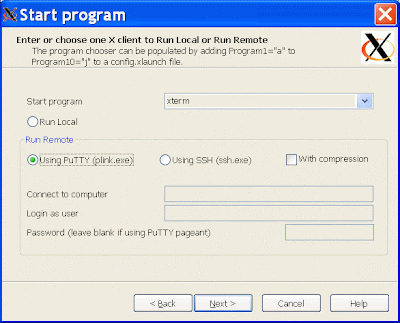
In Start Program, kindly change the default xterm program to /usr/bin/gnome-session in order to run the JDS in the remote SUN Fire V480 server.
Common program commands include:- For GNOME (RedHat): /usr/bin/gnome-session
- For KDE (SuSE): /opt/kde3/bin/startkde
- For KDE (Fedora Core): /usr/bin/startkde
- For CDE (AIX ): /usr/dt/bin/Xsession
- For CDE (Solaris): /usr/dt/bin/Xsession
- For JDS (Solaris 10): /usr/bin/gnome-session
Then, kindly click to select the "Using PuTTY (plink.exe)". Please enter the remote machine hostname or IP address at the Connect to computer and kindly enter your login userID in the Login as user. Please leave the password blank for security reason. Kindly click "Next >" to continue.

Please click "Next >".

Please click "Save configuration" to save your profile setting so that you can use this profile for future connection to the remote host.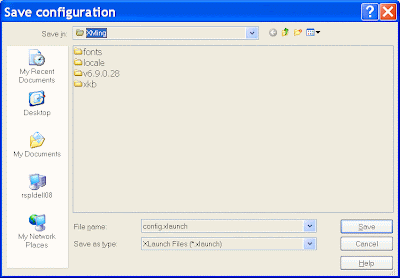
Please change the default config.xlaunch file name to another file name such as "SUNFire_V480.xlaunch" so that you know that this profile is for the SUN Fire V480 server. Kindly click the "Save" button to save your configuration. Finally, please click the "Finish" button to finish your configuration using XLaunch. - Please copy the "SUNFire_V480.xlaunch" file and paste it to your desktop for convenient launching of this profile from your desktop. Please do not copy the "SUNFire_V480.xlaunch" file and paste it as shortcut to your desktop because Xming will fail to work.
- Kindly double-click the "SUNFire_V480.xlaunch" file on your desktop to start connecting to the remote SUN Fire V480 server. When you connect to a remote host computer for the first time using public-key authentication, the remote host sends your local computer its public key in order to identify itself. Kindly click Yes to store the host key on your local computer. If you save the host key, you do not have to go through this procedure again the next time you login. The host's public key will still be checked with each connection, but this will be done automatically, without user intervention. You will be prompt to enter your password:

Please enter your password and you will be connected to the remote host and present with the desktop environment (depending on the command you use) of the remote host in your Windows pc.
1) After creating a xxx.xlaunch profile for the remote host using XLaunch, you can simply copy and paste this xxx.xlaunch profile on your desktop. Then, change it to a different name such as yyy.xlaunch to reflect another remote machine profile. After that, edit this new yyy.xlaunch profile with an editor such as WordPad in your Windows pc to change it values so that you do not need to run the XLaunch to create a new profile again. Common values in the yyy.xlaunch profile that you will edit are the Program="/xxx/xxx/xxx", RemoteUser="xxx" and RemoteHost="xxx.xxx.xxx.xxx" values.
2) Please ensure that your firewall setting in your Windows pc allows Xming X Server to have incoming network access to your Windows pc.
3) After connecting to the remote host using Xming, it is recommended that you log out normally from the remote host first before closing the Xming window (by clicking the X
 from the top RHS of the Xming window) to end your connection.
 When prompt with the below message:
Xming - Exit ? Exiting will close all screens running on this display. There are currently xx clients connected. Proceed will shutdown of this display/server ?
Kindly click the "exit" button to end your Xming connection.
Reference:
[1] Xming
Wednesday, June 25, 2008
Rip music using Windows Media Player (Rev: 1.1)
My niece asked me on how to rip music from the music CD and store it as mp3 format in her (Windows XP OS) computer so that she can transfers the mp3 music to her handphone later. You can use Windows Media Player (free) to rip music and save it as mp3 format. You can download Windows Media Player 11 (24.5 MB) for Windows XP OS from Microsoft website.
Assume you are using Windows Media Player 11 in Windows XP computer and have placed your music CD into your CD/DVD drive:
- Kindly click Start -> All Programs -> Windows Media Player.
- In Windows Media Player, kindly click the Rip button. Click the CD/DVD drive that you have placed your CD. Your list of song tracks will automatically appear and are all selected by default. You can uncheck those songs that you don't want to rip by clearing the check box next to the song. You can also use the check box at the top of the list to select or clear all check boxes.

- Before ripping, please click Rip -> More Options. You can change the rip music storing location, format (eg: mp3), audio quality, etc. Kindly click OK after you have changed your settings.

- Kindly click the Start Rip button to start ripping your selected songs.
The first time you rip music, you are prompted to choose the format for the files being created. Please click one of the following options:
- Keep my current format settings. This option keeps your current file format and audio quality level settings and immediately starts ripping the songs you selected to your computer. By default, Windows Media Player uses the Windows Media Audio (wma) format, which optimizes the balance between file size and sound quality.
- Change my current format settings. Select this option if you want to change the format, bit rate, storage folder, or other options.
After you click an option, click OK.
After the songs have been ripped, you can find and play them in your library.
Tuesday, June 24, 2008
"No flash video displayed" error in YouTube (Rev: 1.1)
Situation
In YouTube website, my niece's computer (Windows XP OS) running Internet Explorer (IE) version 7 browser cannot see the flash video displayed on her screen. The error message was
"Hello, you either have JavaScript turned off or an old version of Macromedia's Flash Player. Get the latest Flash player".
She had already installed the latest Adobe Flash Player version 9.0.124.0 for IE 7 from Adobe website but it still did not work.
Solution
1) Open the Window Explorer. Kindly navigate to C:\WINDOWS\system32\Macromed\Flash folder
2) Locate the file FlashUtil9f.exe and double-click to run it. This will reinstall the Adobe Flash player so that it will display the flash video correctly in YouTube website.
"Boot command is disabled" error in OBP (Rev: 1.1)
Situation
When the Sun Fire V480 server with Solaris 9 Operating System (OS) is power on, the screen is blank for a long period of time (more than 15 minutes) before it finally show the diagnostic result and an ok prompt. I decided to upgrade the OS to Solaris 10. I placed the Solaris 10 5/2008 (SPARC) DVD into the DVD drive.
From the ok prompt,
ok boot cdrom
-> boot command is disabled
Solution
Although the Sun Fire V480 server switch is turned to the normal power on position, I suspected the server was in diagnostic mode during power on because it showed the diagnostic result and the diag-switch environment is set to true. Hence, I tried the below steps:
ok setenv diag-switch? false
ok reset-all
The server will auto reboot itself and boot to the ok prompt. This time, the diagnostic result is not shown. I tried the below:
ok boot cdrom
and the server boot from the DVD normally.
After installing the Solaris 10 OS, I change the diag-passes environment variable in the eeprom from 1 to 0 in order to make the server boot up faster:
# eeprom diag-passes=0
Tuesday, May 20, 2008
Explore2fs (Rev: 1.1)
Explore2fs is a free Windows explorer for accessing (read-only) Linux extended (ext2 and ext3) file systems in the Windows pc. It runs under most versions of Windows and is useful when you save your files in Linux and want to access your Linux files in Windows.
Download Explore2fs
You can download the Explore2fs stable version 1.07 (explore2fs-1.07.zip, binary, Windows platform) or higher version, unzip the file, and then double-click the explore2fs.exe to run the program in your Windows pc.

If you save your Linux files in an external USB hardisk with ext2/ext3 file partition, please plug in your USB hardisk to the Windows pc and then run explore2fs.exe to start the explore2fs program. Kindly select File -> Rescan Partitions. You should be able to see your USB hardisk (eg: hdb1) in the explore2fs program. Kindly navigate in the explore2fs program to view your Linux files.
Copy Linux file to Windows system
To copy your Linux file to the Windows system, kindly select the Linux file that you want to copy, right-click and select "Export to..." to copy the selected Linux file to a location in your Windows system.
Subscribe to:
Posts (Atom)